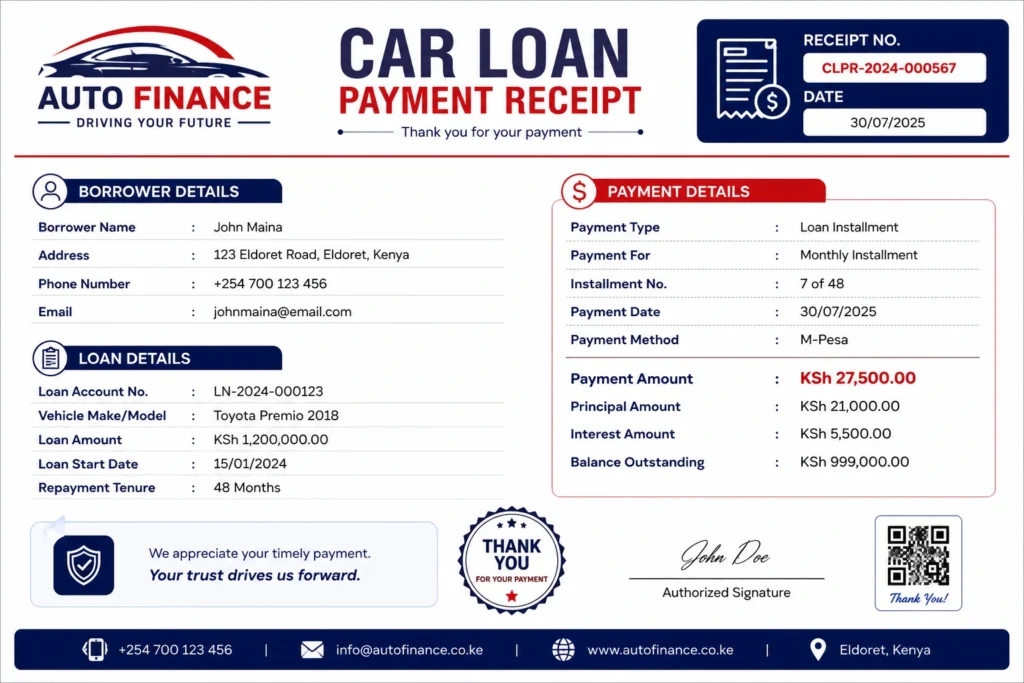
This Car Loan Payment Receipt Template is designed to provide clear, legally structured proof of payment while maintaining a clean, single-page presentation.
Built specifically to prevent clutter, it fits all critical loan, vehicle, and financial details onto one single page without awkward page breaks or overflowing footers.
Get the Car Loan Payment Receipt Template
Key Features Included:
- Complete Identification: Dedicated sections for Lender details, Borrower information, and Receipt reference metadata.
- Full Vehicle Profile: Clear fields for Year, Make, Model, VIN, License Plate, and Vehicle Color.
- Itemized Payment Breakdown: Clear rows separating Principal, Interest, and Additional Fees for transparent tracking.
- Loan Balance Tracking: Summarizes Previous Principal Balance, Applied Principal, Remaining Principal, and the Next Payment Due Date.
- Print & Sign Ready: Clean signature block with date line and official receipt footer.
- Multi-Format Compatibility: Easy to edit using Google Docs, Microsoft Word, or export directly to PDF.
Instant access to fully customizable, single-page templates designed for fast editing and printing.
How to Use the Car Loan Payment Receipt Template
Follow these simple steps to customize and issue your auto loan payment receipt in just a few minutes:
Step 1: Open and Save Your Master Copy
- Download the
.docxfile after and open it in Microsoft Word. - Go to File > Save As and save a fresh copy with a unique name (e.g.,
Car_Loan_Receipt_[BorrowerName]_[Date].docx) to keep your original template blank for future use.
Step 2: Fill Out Business & Borrower Details
- Lender Info: Click inside the header section or top box to enter your company name, business address, phone number, and email.
- Borrower & Vehicle Details: Fill in the borrower’s full name, account number, and contact info. Be sure to input the full 17-digit VIN, Make, Model, and License Plate number to ensure official legal clarity.
Step 3: Enter Payment & Balance Numbers
- Locate the Payment Breakdown table and input the specific dollar amounts for:
- Principal Payment
- Interest Payment
- Late Fees / Other Charges (if applicable)
- Update the Total Amount Received row with the sum of these payments.
- In the Loan Balance Summary table, update the Previous Principal Balance, subtract the Principal Paid, and enter the updated Remaining Balance along with the next due date.
Step 4: Export to PDF or Print
- Save as PDF: Go to File > Save As (or Export) and choose PDF. Sending a PDF ensures the receipt cannot be altered by the recipient.
- Print: If providing a physical copy, press
Ctrl + P(orCmd + Pon Mac). The layout is pre-configured to automatically print perfectly on a single 8.5″ x 11″ Letter page without spilling onto a second sheet.
Create professional receipts in seconds with Receipt Generator Pro.