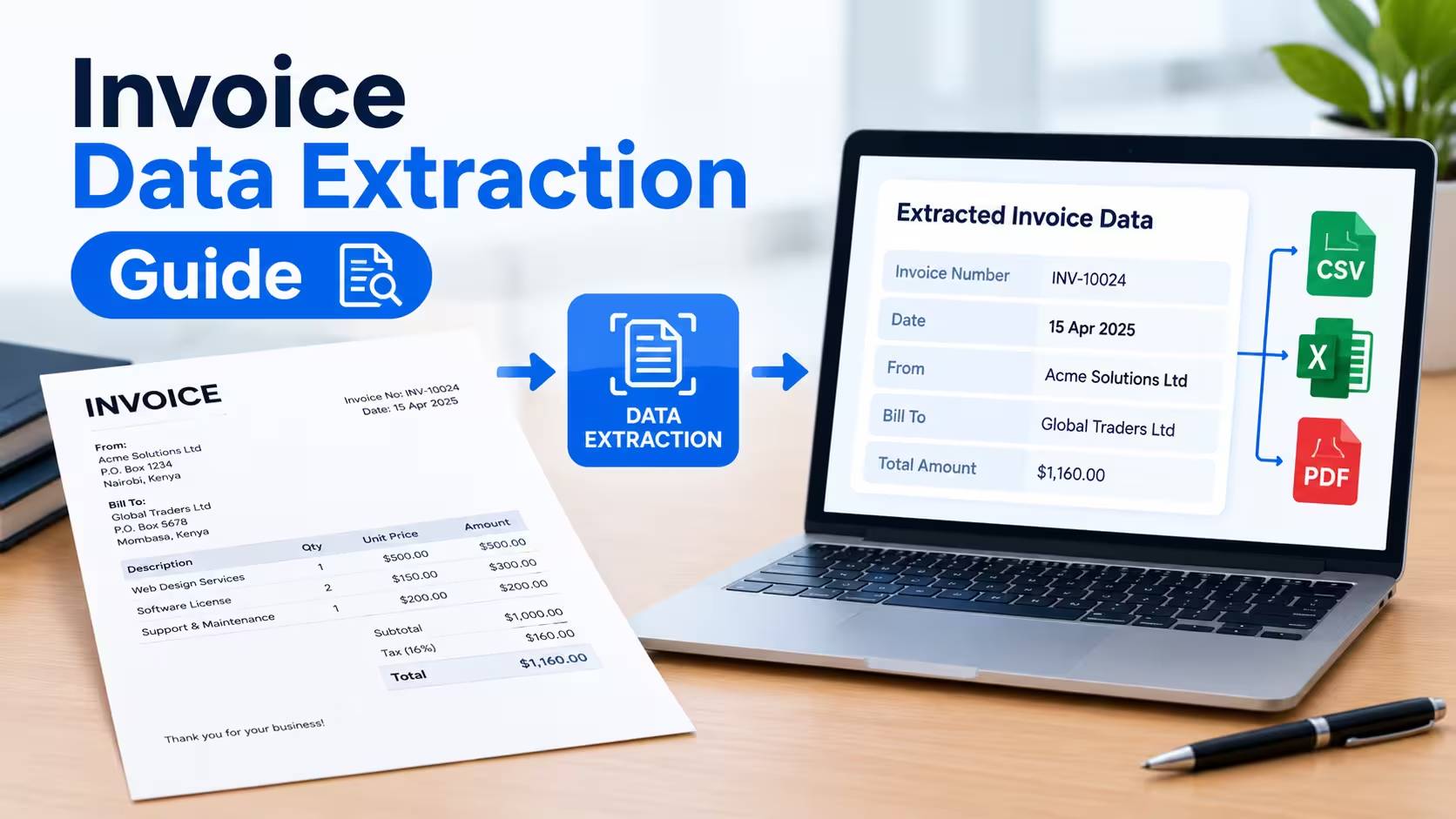
An invoice data extraction template is a structured spreadsheet or form that captures key invoice fields — vendor name, invoice number, date, line items, tax, and total — in a consistent, standardized format. It exists so that anyone processing invoices (manually or through software) pulls the same data points, in the same order, every time.
Below, you’ll find a ready-to-use template structure, the exact fields to include, and a guide to extracting invoice data accurately whether you’re doing it by hand or with automation.
The Core Invoice Data Extraction Template
Use this field list as your baseline template, whether you build it in Excel, Google Sheets, or an OCR/automation tool.
| Field Category | Field Name | Example |
|---|---|---|
| Vendor Info | Vendor Name | Acme Supplies Inc. |
| Vendor Info | Vendor Address | 123 Main St, Austin, TX |
| Vendor Info | Vendor Tax ID / VAT No. | 74-1234567 |
| Invoice Details | Invoice Number | INV-00512 |
| Invoice Details | Invoice Date | 08/14/2026 |
| Invoice Details | Due Date | 09/13/2026 |
| Invoice Details | Purchase Order (PO) Number | PO-4489 |
| Payment Terms | Payment Terms | Net 30 |
| Payment Terms | Currency | USD |
| Line Items | Item Description | Office chairs (x10) |
| Line Items | Quantity | 10 |
| Line Items | Unit Price | $89.00 |
| Line Items | Line Total | $890.00 |
| Totals | Subtotal | $890.00 |
| Totals | Tax Amount | $73.43 |
| Totals | Discount (if any) | $0.00 |
| Totals | Grand Total | $963.43 |
| Payment Info | Bank Account / IBAN | Optional, if paying via wire |
| Payment Info | Payment Method | ACH, check, wire, card |
| Internal Tracking | Approval Status | Pending / Approved / Paid |
| Internal Tracking | Cost Center / GL Code | 6100-Office Supplies |
This structure works for a single spreadsheet row per invoice, or as individual fields in a data extraction tool’s output schema. Keep the column order consistent across every invoice you process — this is what makes bulk imports and audits fast later.
How to Extract Invoice Data: Step-by-Step
1. Choose Your Extraction Method
Manual entry works for low invoice volume (under ~20 per week). For anything higher, OCR-based tools or AI-powered extraction software save significant time and reduce keying errors.
2. Standardize Your Field List First
Before extracting a single invoice, finalize the field list you need (use the template above as a starting point). Changing fields mid-process forces you to redo completed work.
3. Capture Header-Level Data
Pull vendor name, invoice number, invoice date, due date, and PO number first. These fields anchor the invoice record and are used to match it against purchase orders during three-way matching.
4. Extract Line-Item Detail
Record each line item separately — description, quantity, unit price, and line total. This level of detail matters for expense categorization, tax reporting, and catching billing discrepancies.
5. Validate Totals
Cross-check that subtotal + tax − discount equals the grand total. This single validation step catches most manual entry errors and vendor billing mistakes before payment goes out.
6. Export or Sync to Your Accounting System
Once validated, export the structured data to CSV, or sync it directly into QuickBooks, Xero, NetSuite, or your ERP. Matching your template’s field names to your accounting software’s import fields ahead of time avoids mapping errors.
Manual vs. Automated Invoice Data Extraction
| Factor | Manual Entry | Automated (OCR/AI) Extraction |
|---|---|---|
| Best for | Under 20 invoices/week | 20+ invoices/week |
| Setup time | None | 1–5 days (tool config) |
| Error rate | Higher (human keying errors) | Lower, but needs spot-checks |
| Cost | Labor hours | Software subscription |
| Scalability | Poor | High |
If you’re processing invoices from many different vendors with inconsistent formats, automated tools using OCR and machine learning typically pay for themselves within a few months through time savings alone.
Common Mistakes to Avoid
Skipping line-item detail is the most frequent mistake — recording only the invoice total leaves you unable to categorize expenses accurately later. Inconsistent date formats (MM/DD/YYYY vs. DD/MM/YYYY) also cause reconciliation issues, especially with international vendors.
Failing to capture the PO number is another common gap. Without it, matching the invoice to the original purchase order for approval becomes a manual, time-consuming search.
Frequently Asked Questions
What fields should an invoice data extraction template always include?
At minimum: vendor name, invoice number, invoice date, due date, line items (description, quantity, price), subtotal, tax, and grand total. These fields cover the majority of accounting and approval workflow needs.
Can invoice data extraction be automated?
Yes. OCR (optical character recognition) and AI-based tools can automatically read scanned or PDF invoices and populate a structured template, reducing manual entry time by 70–90% for high-volume processing.
What’s the difference between invoice data extraction and invoice processing?
Data extraction is the step of pulling structured fields (vendor, amount, date, etc.) out of an invoice document. Invoice processing is the broader workflow that includes extraction plus approval, matching, and payment.
What file format should I use for an invoice template?
Excel or Google Sheets work well for manual use and small teams. For automated extraction, structured formats like CSV or JSON are more compatible with accounting software integrations.
Conclusion
Download or replicate the template structure above into your spreadsheet tool of choice, and standardize it across your accounts payable process before your next invoice batch. If your invoice volume is growing, evaluate an OCR or AI extraction tool now — the earlier you standardize your fields, the smoother that transition will be.
Create clean, professional invoices in seconds with our powerful Invoice Generator.