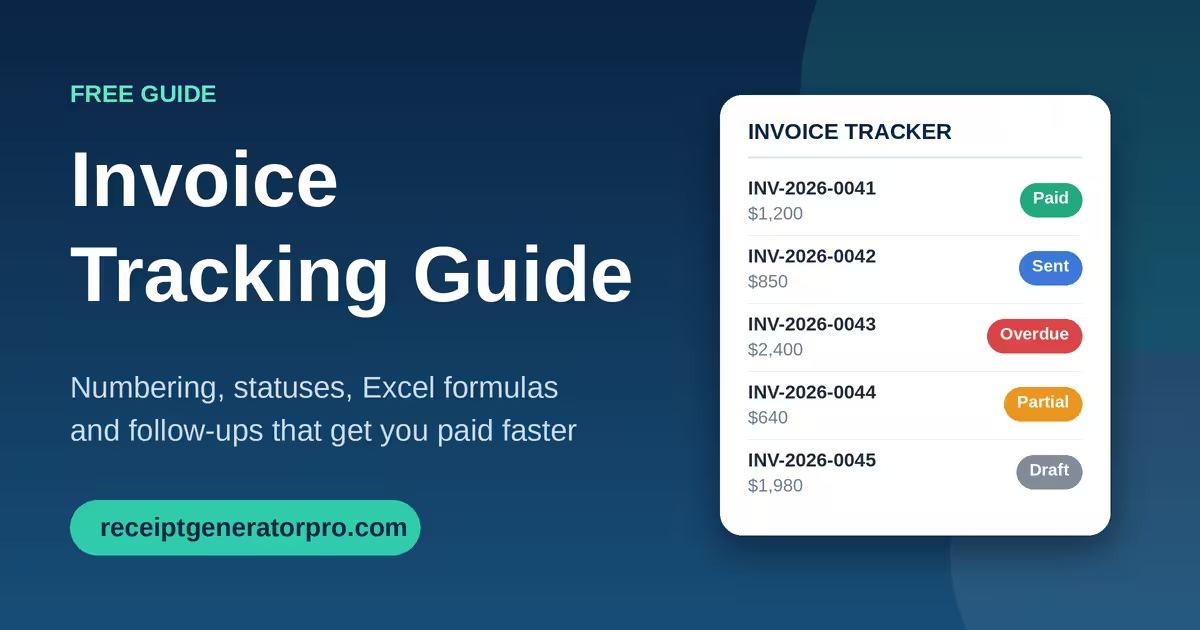
Invoice tracking is the process of recording every invoice you send and monitoring its status until payment arrives.
The simplest method is a tracker that logs each invoice’s number, client, amount, due date, and status, which you review weekly. If you want a ready-made setup, start with our Free Invoice Tracker Google Sheets Template and use this guide to run it well.
This guide covers what to track, which statuses to use, how to number invoices, how to build a tracker in Excel, and how to follow up on late payments.
Table of Contents
Why Invoice Tracking Matters
Invoice tracking protects your cash flow, because late payment is now routine for small businesses. QuickBooks’ 2026 Small Business Late Payments Report found that 59% of small businesses have invoices overdue by 30 days or more, up from 47% a year earlier. Businesses waiting on payment are owed $17,700 on average.
Small gaps cause real damage. In the same report, 39% of owners said one late payment made it hard to cover payroll or bills, and 12% said a payment under $1,000 was enough to cause that strain.
Waiting is the baseline. Xero Small Business Insights shows U.S. small businesses were paid an average of 8.5 days late in the second quarter of 2026, with an average wait of 29.3 days to get paid.
Cash cushions are thin. A September 2026 altLINE survey, reported by CPA Practice Advisor, found that 40% of small businesses lack the reserves to survive a month of late client payments.
Payment terms matter too. QuickBooks found that 55% of businesses on net-30 terms have overdue invoices, compared with 26% of businesses that require immediate payment.
A tracker will not make clients pay faster on its own. It shows you which invoices need action today, so a 10-day delay does not turn into a 60-day problem.
What to Track on Every Invoice
A useful tracker needs ten fields. Anything beyond these slows down data entry without helping you collect faster.
| Field | What it tells you |
|---|---|
| Invoice number | The unique ID that links the invoice to payments and records |
| Client name | Who owes you, and who to contact |
| Issue date | The day the invoice was sent |
| Due date | The day payment is expected, based on your terms |
| Amount billed | The total, including tax and fees |
| Amount paid | What has been received so far |
| Balance due | Billed minus paid |
| Status | Where the invoice stands right now |
| Date paid | When the final payment cleared |
| Notes | Follow-up dates, disputes, and promised payment dates |
Add a payment method column only if you accept several options, such as ACH, card, and check. It helps when you reconcile deposits against your bank statement.
Invoice Statuses to Use
Seven statuses cover almost every situation. Keep the list short so you can filter and report on it quickly.
- Draft: Created but not sent. It does not count toward what clients owe you.
- Sent: Delivered to the client and not yet due.
- Partially paid: Some money has arrived, but a balance remains.
- Paid: The full amount has cleared your account.
- Overdue: The due date has passed with a balance still open.
- Disputed: The client questioned the amount or the work. Pause reminders until it is resolved.
- Written off: You have decided the balance is uncollectible. Record it for tax and bookkeeping purposes.
If your invoicing software shows when a client opens an invoice, you can add a Viewed status. It tells you the invoice reached the right person.
How to Track Invoices Step by Step
To track an invoice, give it a unique number, log it the day you send it, and update its status until the money clears. These seven steps make that routine.
- Number the invoice before you send it. A unique number prevents duplicates and makes every payment easy to match.
- Log it the same day. Enter the client, dates, and amount right away. Invoices logged a week later are the ones that get forgotten.
- Set the due date from your payment terms. Net 30 means 30 days from the issue date. Shorter terms usually get you paid sooner.
- Update the status after every event. Mark an invoice Sent, Partially paid, Paid, or Overdue as soon as it changes.
- Record each payment against its invoice. Enter the amount and date from your bank deposit, not from memory.
- Review open invoices every week. Sort by due date and act on anything due within five days or already late.
- Reconcile monthly. Compare total payments in your tracker to your bank statement and fix any mismatch.
The weekly review is the step that moves cash. Fifteen minutes on the same day each week is enough for most small businesses.
Read: 10 Simple Accounting Software for Small Business
Choose the Right Invoice Tracking Method
The best method is the one you will update every week. QuickBooks reports that 74% of small businesses are not fully automated when it comes to managing and paying bills, so a simple manual system is still common and workable.
| Method | Best for | Main limit |
|---|---|---|
| Spreadsheet (Excel or Google Sheets) | Freelancers and small teams with modest invoice volume | Requires manual updates and formulas |
| Accounting software | Businesses that need reports, tax features, and bank syncing | Monthly cost and a learning curve |
| Invoice generator plus spreadsheet | Owners who want fast invoice creation and low-cost tracking | Two tools to keep in sync |
| Paper ledger | Very low invoice volume | No search, no formulas, easy to lose |
If you create invoices with a free invoice generator and track them in a spreadsheet, you get a low-cost setup that scales to a few dozen invoices a month. Move to accounting software when reconciling bank deposits starts taking more time than collecting payments.
How to Create an Invoice Tracker in Excel
To create an invoice tracker in Excel, set up ten columns, add three formulas, and use a dropdown and conditional formatting to flag overdue invoices. The whole setup takes about 15 minutes.
| Column | Header | Entry or formula (row 2) |
|---|---|---|
| A | Invoice # | INV-2026-0001 |
| B | Client | Client name |
| C | Issue Date | Date you sent the invoice |
| D | Due Date | =C2+30 (change 30 to match your terms) |
| E | Amount Billed | Invoice total |
| F | Amount Paid | Payments received |
| G | Balance Due | =E2-F2 |
| H | Status | Dropdown list |
| I | Days Overdue | =IF(AND(G2>0,TODAY()>D2),TODAY()-D2,0) |
| J | Notes | Follow-up details |
Follow these steps:
- Enter the headers in cells A1 through J1, then freeze the top row under View > Freeze Panes.
- Convert the range to a table. Select the headers and a few blank rows, then press Ctrl+T. Formulas copy down automatically as you add rows.
- Add the formulas from the table above to columns D, G, and I.
- Create the status dropdown. Select column H, open Data > Data Validation, choose List, and enter: Draft, Sent, Partially paid, Paid, Overdue, Disputed, Written off.
- Highlight overdue rows. Select the data rows, open Home > Conditional Formatting > New Rule > Use a formula, and enter
=$I2>0. Pick a red fill. - Build a summary on a separate sheet. Use
=SUM(G2:G500)for total outstanding,=SUMIFS(G2:G500,I2:I500,">0")for total overdue, and=COUNTIF(I2:I500,">0")for the number of overdue invoices.
The Days Overdue formula uses TODAY(), so it recalculates every time you open the file. The same formulas work in Google Sheets, and our Google Sheets invoice tracker template gives you a ready-made version of this setup.
Best Invoice Numbering System
The best invoice numbering system is sequential, unique, and consistent. Every invoice gets one number, the numbers always increase, and no number is ever reused.
| Format | Example | Best for |
|---|---|---|
| Simple sequential | 0001, 0002, 0003 | Freelancers and new businesses |
| Prefix + sequence | INV-0042 | Businesses that also issue quotes or credit notes |
| Year + sequence | 2026-0042 | Businesses that archive records by tax year |
| Client code + sequence | ACME-0007 | Agencies with repeat clients |
| Date-based | 20261005-01 | High-volume businesses sending several invoices a day |
For most small businesses, a prefix, year, and sequence works best, such as INV-2026-0042. You can tell at a glance what the document is, which year it belongs to, and where it falls in the order.
Follow these rules whichever format you choose:
- Never skip or reuse a number. Gaps raise questions during an audit or client review.
- Keep canceled invoices in your log. Leave the number in the tracker and note that it was voided, instead of deleting the row.
- Use leading zeros. They keep numbers in the right order when you sort, so 0009 comes before 0010.
- Use separate prefixes for other documents. Quotes (QUO-), credit notes (CN-), and invoices (INV-) should not share one sequence.
- Pick one format and stay with it. Changing formats midyear makes your records harder to search.
How to Follow Up on Overdue Invoices
Follow up on a fixed schedule, starting before the due date. A set routine removes the guesswork and keeps every reminder polite and consistent. In the QuickBooks survey, 26% of owners said their most useful digital tools help them chase and collect unpaid invoices faster.
- Three days before the due date: Send a friendly reminder with the invoice attached.
- On the due date: Send a short note with a payment link or bank details.
- Three days late: Ask the client to confirm a payment date.
- Ten days late: Send a second email and make a phone call.
- Thirty days late: Send a formal notice that cites your payment terms and any late fee.
- Forty-five days late or more: Send a final demand, or review the account for collections or write-off.
Adjust the timing to your terms. You can confirm exact due dates with an invoice due date calculator. Late fee rules vary by state, so check yours before adding a late fee to your terms.
Review an Aging Report Monthly
An aging report groups unpaid invoices by how late they are. It shows you where the risk is, and your Days Overdue column makes it easy to build.
| Bucket | Days overdue | Action | Formula for total |
|---|---|---|---|
| Current | 0 | None | =SUMIFS(G2:G500,I2:I500,0) |
| 1-30 | 1 to 30 | Friendly reminder | =SUMIFS(G2:G500,I2:I500,">=1",I2:I500,"<=30") |
| 31-60 | 31 to 60 | Phone call, confirm date | =SUMIFS(G2:G500,I2:I500,">=31",I2:I500,"<=60") |
| 61-90 | 61 to 90 | Formal notice, pause new work | =SUMIFS(G2:G500,I2:I500,">=61",I2:I500,"<=90") |
| 90+ | Over 90 | Final demand or collections review | =SUMIFS(G2:G500,I2:I500,">90") |
Watch the 31-60 and 61-90 buckets. Money in those buckets is the most likely to turn into a write-off if no one acts.
How Long to Keep Invoice Records
Keep invoices for at least three years. The IRS says the general rule is three years, depending on the action, expense, or event the document records. Employment tax records should be kept for at least four years.
Some records need longer retention, such as those tied to property or a bad debt deduction. Confirm the right period with your tax professional. Save a PDF copy of every invoice by tax year and back up the folder.
Common Invoice Tracking Mistakes
- Tracking in several places. Keep one master tracker so no invoice lives in an email thread only.
- Updating once a month. A late invoice found 30 days later has already cost you time.
- Ignoring partial payments. Record every payment, or your balance due will be wrong.
- Leaving terms off the invoice. State the due date, accepted payment methods, and any late fee on the invoice itself.
- Skipping bank reconciliation. Matching deposits to invoices catches missing and misapplied payments.
- Following up only when cash is tight. Reminders sent on a schedule are easier to send and easier to receive.
FAQs
What is the best way to track invoices effectively?
The best way is to log every invoice in one tracker the day you send it, update its status after each event, and review open invoices weekly. Add clear payment terms and scheduled reminders to cut the number of late payments. A spreadsheet works for modest volumes, and accounting software suits higher volumes.
How can I track an invoice?
Record the invoice number, client, amount, due date, and status in a tracker, then update the status as payments arrive. Confirm each payment against your bank deposits before marking the invoice Paid. If you send invoices through software, you can also see when the client opens them.
How can I create an invoice tracker in Excel?
Set up columns for invoice number, client, issue date, due date, amount billed, amount paid, balance due, status, and days overdue. Use =E2-F2 for the balance and =IF(AND(G2>0,TODAY()>D2),TODAY()-D2,0) for days overdue. Then add a status dropdown and a conditional formatting rule to highlight overdue rows. The full steps are in the Excel section above.
What is the best numbering system for invoices?
The best system is sequential, unique, and consistent, such as INV-2026-0042. Use leading zeros, never reuse a number, and keep voided invoices in your log so there are no unexplained gaps.
Sources
- Intuit QuickBooks: 2026 Small Business Late Payments Report
- Xero: Late payments are climbing again, how to protect your cash flow in 2026
- CPA Practice Advisor: 40% of Small Businesses Lack Cash Reserves to Survive a Month of Late Client Payments
- IRS: Common questions about recordkeeping for small businesses