The best way to share a Google Docs receipt with a customer is to download it as a PDF and send it via email or a direct link, rather than sharing edit access to the live document. This keeps the receipt uneditable, professional, and easy for the customer to save or print.
Below is a breakdown of the exact steps, plus the pros and cons of each sharing method so you can pick what fits your workflow.
How to Share a Google Docs Receipt as a PDF
Follow these steps to convert and send your receipt correctly:
- Open your receipt in Google Docs.
- Click File > Download > PDF Document (.pdf).
- Save the file with a clear name, such as “Receipt_1023_SmithJohn.pdf”.
- Attach the PDF to an email, or upload it to a cloud folder and share a download link.
This takes under a minute and works the same whether you’re on desktop or the Google Docs mobile app.
Other Ways to Share a Google Docs Receipt
Email attachment (PDF): This is the most common and expected method. It gives the customer a permanent copy in their inbox they can search for later.
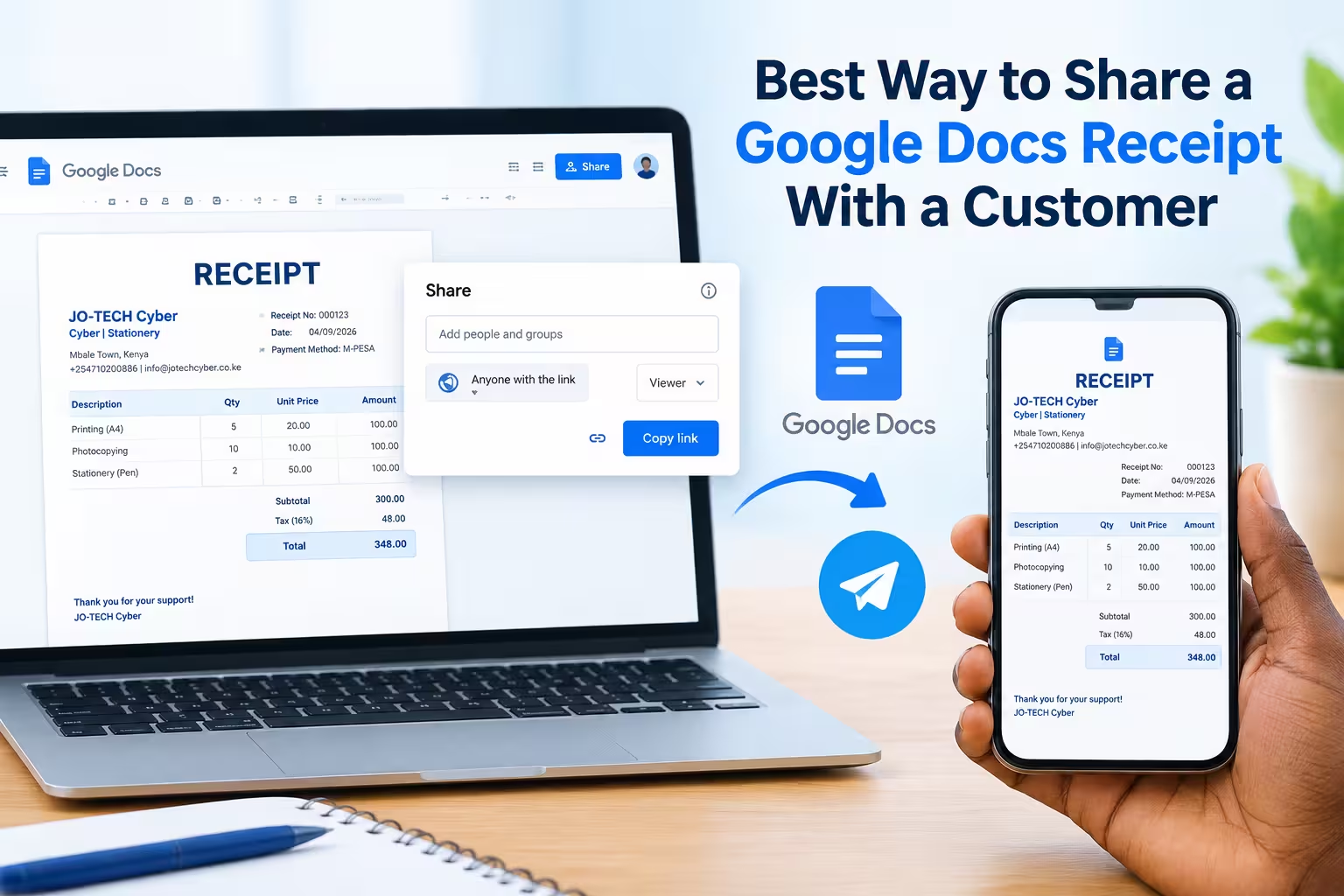
Shareable “view only” link: If you don’t want to attach a file, you can share the Google Doc itself with permissions set to “Viewer” only. This prevents edits but still shows the doc in Google’s native format rather than a clean PDF.
Print or save to device: For in-person transactions, you can print the receipt directly or save the PDF to a phone and AirDrop or text it to the customer on the spot.
Automated email via Google Workspace: If you send receipts often, tools like Google Apps Script can auto-generate and email a PDF receipt whenever a form or spreadsheet entry is submitted, cutting out manual work entirely.
Setting the Right Permissions Before Sharing
If you choose to share the Doc link instead of a PDF, permissions matter. Go to Share > General access and set it to “Anyone with the link” and “Viewer,” not “Editor” or “Commenter.”
This prevents the customer, or anyone who forwards the link, from changing the receipt’s content. It’s a quick check that avoids disputes over altered amounts or dates later.
Best Practices for Professional Receipt Sharing
A few habits make receipt-sharing smoother and more trustworthy for both sides:
- Always convert to PDF before sending to an external customer.
- Name files clearly, including a date or receipt number, so customers can find them later.
- Keep a copy for your own records, either in a dedicated Google Drive folder or accounting software.
- Password-protect sensitive receipts (using a PDF tool) if they contain personal or payment information and are sent over an unsecured channel.
Following these steps takes only a few extra seconds but significantly reduces confusion, disputes, and unprofessional back-and-forth.
Read: How to Create Receipts in Google Docs: Easy Guide
FAQs
Can a customer edit a Google Docs receipt after I share it?
Only if you give them Editor or Commenter access. Setting permissions to “Viewer” or sending a PDF instead prevents any changes.
Is emailing a PDF receipt more professional than sharing a Google Doc link?
Yes. A PDF looks finalized and matches what customers expect from a receipt, while a live Doc link can look unfinished or editable.
Can I automate sending Google Docs receipts to customers?
Yes. Google Apps Script or third-party tools like Zapier can trigger an automatic PDF export and email whenever a new transaction is logged in a form or spreadsheet.
Do I need to password-protect a receipt sent by email?
It’s not required, but recommended if the receipt includes sensitive details like a partial card number, home address, or large dollar amounts.
Summary
The most professional and secure way to share a Google Docs receipt is to export it as a PDF and send it by email, rather than sharing edit access to the original document. If you do share the live Doc, always lock permissions to “Viewer only” to prevent unwanted edits.