
An invoice calendar is a scheduling tool that lays out when invoices need to be sent, when they’re due, and when to follow up, all in one visual, month-by-month view. It turns scattered invoice dates into a single reference point so nothing gets billed late or chased too late.
Below you’ll find a free, editable invoicing calendar template in Word format, along with how to set one up, what to track on it, and how it’s different from a basic invoice tracker or spreadsheet.
Download Free Invoice Calendar
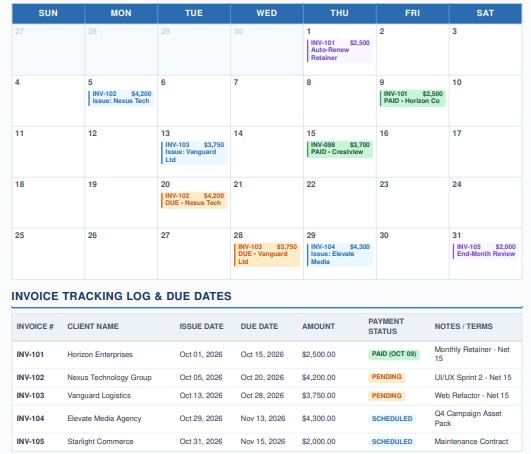
The calendar below includes three ready-to-use pages: a cover page with instructions and a color legend, a blank monthly calendar grid you can duplicate for every month, and an annual invoicing schedule table for tracking recurring billing across the whole year.
What to Track on Your Invoice Calendar
A useful invoicing calendar captures four types of activity, each ideally marked with its own color or symbol so the month is easy to scan:
- Invoice sent — the date an invoice was issued to a client.
- Payment due — the deadline from your payment terms (Net 15, Net 30, etc.).
- Payment received — the date money actually came in, so you can spot late payers.
- Follow-up reminder — a self-set date to check in before an invoice becomes overdue.
It’s built in Microsoft Word and opens cleanly in Google Docs as well — just upload the file to Google Drive and open it with Google Docs if that’s your preferred editor. Fill in the company name and year on the cover page, then copy the monthly calendar page for each month you want to plan.
How to Set Up Your Invoicing Calendar
- Fill in the cover page with your company name and the year, so each printed or saved copy is easy to file.
- Duplicate the monthly grid once for every month you’re planning, or print several blank copies in advance.
- Write the day number in the top-left of each box, matching it to the actual calendar dates for that month.
- Mark invoice activity in the boxes using the legend — invoice sent, payment due, payment received, or follow-up.
- Fill out the annual schedule on the last page for any recurring clients, so their billing cadence is visible without flipping through every month.
- Review it weekly to catch upcoming due dates and invoices that are drifting toward late.
Who Actually Needs an Invoice Calendar
This tool earns its place for a specific kind of workload, more than for every business.
- Freelancers and consultants with several ongoing clients on different billing cycles.
- Agencies managing retainers that renew monthly but on different dates for each client.
- Small businesses with recurring invoices (subscriptions, service contracts, rent) that need to go out like clockwork.
- Anyone chasing late payments who needs a simple way to see which follow-ups are coming up next.
A solo freelancer with one or two clients probably doesn’t need a calendar view — a simple list is enough. Once you’re tracking five or more invoice dates a month, the calendar format starts paying for itself.
Also see: Free Invoice Due Date Calculator
Frequently Asked Questions
Is an invoice calendar the same as an invoice tracker?
Not quite. An invoice tracker is usually a list or spreadsheet organized by client or invoice number, while an invoice calendar organizes the same information by date, which makes upcoming due dates and clusters of activity easier to see at a glance.
Can I use Google Calendar as an invoicing calendar?
Yes, for reminders — you can add invoice due dates as events with alerts. A dedicated invoicing calendar template still helps for planning ahead and reviewing a full month’s billing pattern in one view, rather than clicking through individual calendar events.
How far in advance should I plan my invoicing calendar?
Most businesses plan one month at a time but fill in the annual schedule for recurring clients so they know what’s coming for the rest of the year. Reviewing it weekly catches anything that’s about to become overdue.
Does this template work in Google Docs?
Yes. Download the Word (.docx) file, upload it to Google Drive, and open it with Google Docs — the layout, tables, and formatting carry over cleanly.
What’s the best way to mark overdue invoices on the calendar?
Use a distinct color or symbol — different from your “payment due” marker — on the follow-up date so overdue invoices stand out immediately rather than blending in with invoices that are simply upcoming.
Also see: Invoice Date: A Complete Guide