
To attach read receipt in Gmail, open a new email compose window, click the More options icon (three vertical dots) in the bottom-right corner, and select Request read receipt. This native feature is exclusive to Google Workspace (work or school) accounts, so personal @gmail.com users must rely on a browser extension like Mailtrack or Boomerang to track opened emails.
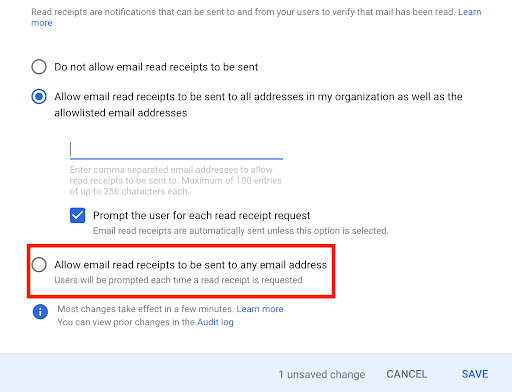
Step-by-Step: Requesting Read Receipts in Google Workspace
If you use an account provided by your company or educational institution, native read receipt tracking takes just a few clicks:
- Open your Gmail inbox and click Compose.
- Add your recipient, subject line, and message body.
- Click the More options menu (three vertical dots) next to the trash icon in the toolbar.
- Select Request read receipt.
- Click Send.
Why Can’t You See the “Request Read Receipt” Option?
If the option does not appear in your compose window, one of two issues is usually responsible:
- Personal Accounts: Standard @gmail.com addresses do not support native read receipts.
- Admin Restrictions: Workspace administrators can disable read receipts across the domain or restrict them strictly to internal recipients within the organization.
How to Get Read Receipts on Personal Gmail Accounts
Personal account users can enable read receipts using free Chrome extensions.
- Visit the Chrome Web Store and search for an email tracking tool (e.g., Mailtrack or Boomerang).
- Click Add to Chrome and grant permission to link the extension to your Gmail account.
- Refresh Gmail; a tracking icon will appear automatically inside your compose toolbar.
- Compose your message as usual and hit send. The extension will notify you via email or pop-up the moment the email is opened.
Important Limitations to Keep in Mind
Native Gmail read receipts are not 100% guaranteed proof of delivery.
- Recipient Approval: Depending on recipient email settings, Gmail may prompt the recipient to manually approve sending the receipt.
- Third-Party Email Clients: Mobile email apps, POP clients, or legacy IMAP setups often ignore read receipt requests automatically.
- Group Emails: Read receipts do not trigger for messages sent to Google Groups or distribution lists.