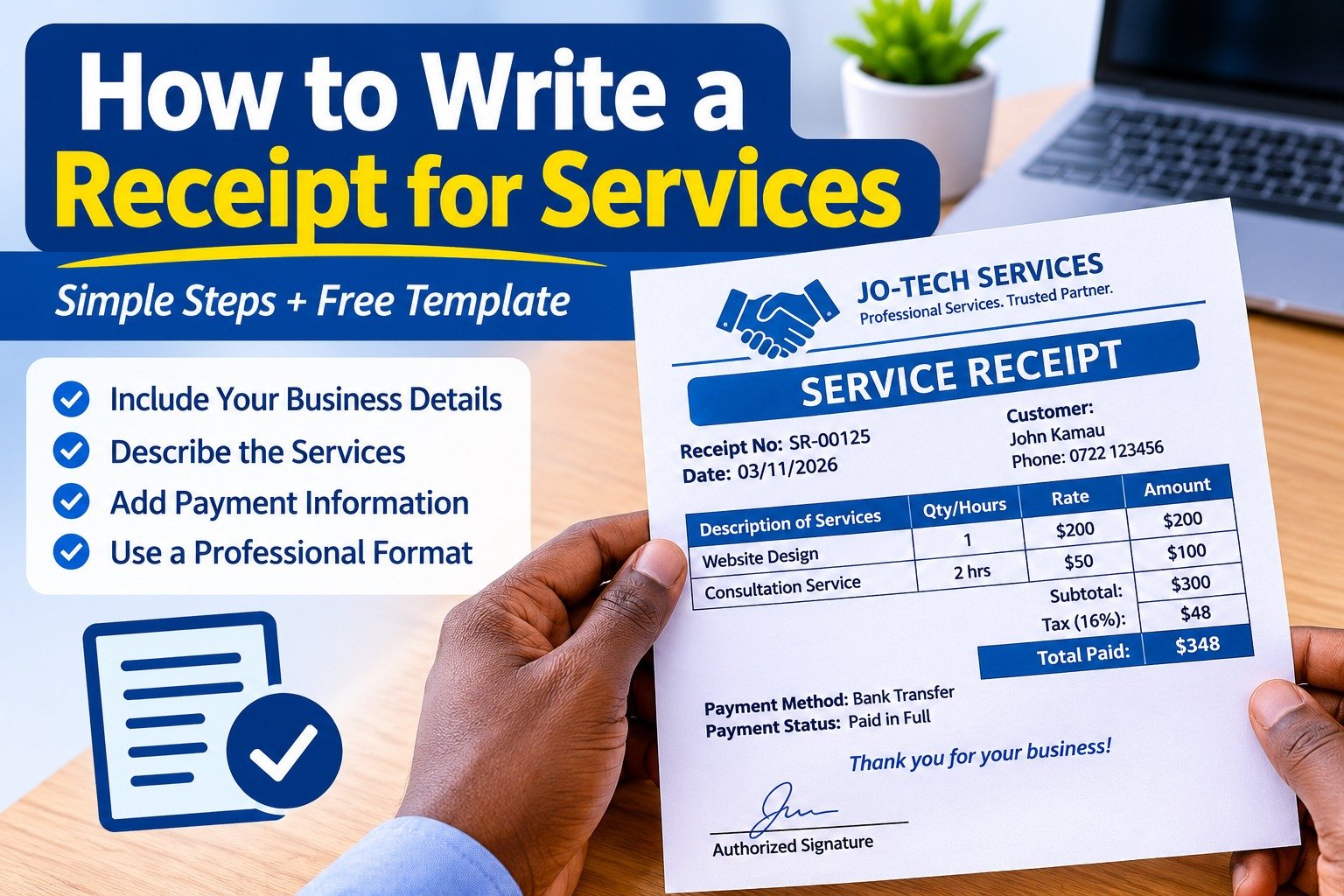
A service receipt is a written document issued by a service provider to confirm that a customer has paid for services rendered. It should include the business name, receipt number, payment date, customer details, description of services provided, amount paid, and payment method.
Whether you run a consultancy, cleaning business, repair shop, freelance service, or other service-based business, writing a professional receipt helps you maintain accurate financial records and gives customers proof of payment.
Create professional receipts in seconds with Receipt Generator Pro.
How to Write a Receipt for Services (Step by Step)
Follow these steps to create a clear and professional service receipt.
Step 1: Add your business information
Start by writing your business name at the top of the receipt. Include your business address, phone number, and email address to help customers identify the service provider.
Step 2: Write the receipt title and number
Add the heading “SERVICE RECEIPT” to indicate the document’s purpose. Assign a unique receipt number, such as SR-001, SR-002, or SR-003.
Step 3: Enter the payment date and customer details
Record the date you received the payment. Add the customer’s name and contact details to identify who paid for the services.
Step 4: Describe the services provided
Clearly explain the work completed or services delivered. Include the service description, quantity or hours worked, and the agreed price where applicable.
For example:
- Website design – $250
- Plumbing repair – $80
- Professional consultation (2 hours) – $100
- House cleaning – $60
Step 5: Calculate the total amount paid
Add the cost of all services and any applicable taxes or additional charges. Deduct discounts where applicable and indicate the final amount received.
Step 6: Specify the payment method
Indicate how the customer paid. Common payment methods include cash, bank transfer, credit card, cheque, PayPal, and mobile money.
Step 7: Add a payment confirmation and signature
Include a statement such as “Payment received in full” or “Partial payment received.” Add the name and signature of the authorized person issuing the receipt.
Step 8: Provide the receipt to the customer
Review the details to ensure they are accurate. Save or print the receipt and provide a copy to the customer for their records.
How to Write a Receipt for Services in Word
Microsoft Word allows you to create a professional service receipt that you can edit, save, and print whenever you receive payments.
Follow these steps:
- Open Microsoft Word on your computer.
- Create a new blank document.
- Add your business name and contact information at the top.
- Insert the heading SERVICE RECEIPT.
- Add the receipt number, payment date, and customer details.
- Insert a table with columns for service description, quantity, rate, and amount.
- Add the subtotal, applicable taxes, discounts, and total amount paid.
- Include the payment method and payment confirmation.
- Add a signature section at the bottom.
- Save the document as a Word file (.docx) for future editing or export it as a PDF for sharing.
Tip: Save your completed receipt as a reusable template. Each time you receive payment, open the template, update the customer and payment details, and save it with a new receipt number.
Tips for Writing Professional Service Receipts
- Use a consistent receipt numbering system.
- Always issue receipts after receiving payment.
- Describe services clearly instead of using vague descriptions.
- Check calculations before issuing the receipt.
- Keep copies of all receipts for accounting purposes.
- Use a professional layout that is easy to read.
- Clearly distinguish between full and partial payments.
- Never indicate that payment has been received if it is still outstanding.
Frequently Asked Questions
What should be written on a receipt for services?
A service receipt should include the business name, contact information, receipt number, payment date, customer details, description of services, amount paid, payment method, and payment confirmation.
Can I write a service receipt in Microsoft Word?
Yes. You can create a service receipt in Microsoft Word by inserting your business details, customer information, service descriptions, payment amounts, and signature section. Save the document as a reusable Word template.
Is a service receipt the same as an invoice?
No. An invoice requests payment for services or products, while a receipt confirms that payment has been received. An invoice is generally issued before payment, whereas a receipt is issued after payment.
Conclusion
Writing a receipt for services is straightforward when you include the correct business, customer, service, and payment details. Whether you create one manually or use Microsoft Word, ensure every receipt clearly identifies the services provided and confirms the amount received. A well-organized receipt helps your business maintain accurate financial records while giving customers reliable proof of payment.