
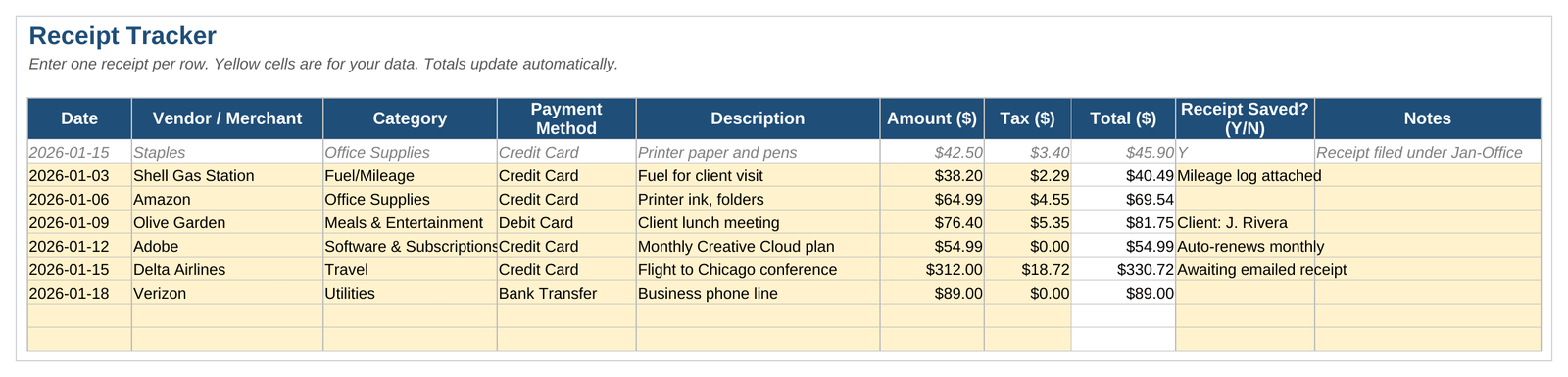
An Excel receipt tracker template is a pre-built spreadsheet that logs every purchase, calculates totals automatically, and sorts spending by category and month. You enter the date, vendor, amount, and category for each receipt, and the built-in formulas handle the math and reporting for you.
Below, you’ll find a free downloadable template, a breakdown of what it includes, and step-by-step instructions for setting it up for your business or personal expenses.
Download Excel Receipt Tracker Template
The template below is ready to use in Excel, Google Sheets, or any spreadsheet program that opens .xlsx files. It includes three tabs: a receipt log, an automatic summary, and step-by-step instructions.
No sign-up is required. Make a copy before you start entering your own data so the example row stays intact for reference.
What’s Included in the Excel Template Receipt Tracker
The template is built around three tabs, each with a specific job.
Receipt Log. This is where you enter every purchase: date, vendor, category, payment method, description, amount, tax, and whether you’ve saved a copy of the physical or digital receipt. A “Total” column adds the amount and tax automatically.
Summary. This tab pulls data from the Receipt Log and displays it as totals by category and by month. You never touch this tab directly; it updates on its own using SUMIFS and SUMPRODUCT formulas.
Instructions. A one-page reference explaining how to add rows, use the drop-down lists, and keep your records audit-ready.
How to Set Up Your Receipt Tracker
Follow these steps to get the template working for your own records.
1. Make a copy of the file. Save it with a name like “Receipts_2026” before entering any data, so you always have a clean backup.
2. Enter one receipt per row. Start on the first blank row in the Receipt Log tab. Fill in the date, vendor name, category, payment method, description, amount, and tax.
3. Use the drop-down lists. The Category and Payment Method columns include pre-set options so your entries stay consistent. Consistent labels are what make the Summary tab’s totals accurate.
4. Mark whether the receipt is saved. Use the “Receipt Saved?” column to flag whether you have a photo or scan on file. This step matters most during tax season or an audit.
5. Check the Summary tab. Once you’ve entered a few receipts, switch to the Summary tab to see totals by category and month update automatically.
6. Save receipts in a matching folder. Store a photo or PDF of each receipt in a folder named to match its row, such as “2026-01-15_Staples,” so you can find the backup fast if you ever need it.
Frequently Asked Questions
Is there a free Excel template for tracking receipts?
Yes. The template linked in this article is free to download and includes a receipt log, an automatic summary, and built-in instructions. No account or sign-up is required.
Can I use this template in Google Sheets?
Yes. Upload the .xlsx file to Google Drive, right-click it, and choose “Open with Google Sheets.” The formulas and drop-down lists carry over without changes.
What information should a receipt tracker include?
At minimum, a receipt tracker should record the date, vendor, category, amount, and whether a copy of the receipt is saved. Adding a tax column and payment method makes the log useful for both budgeting and tax filing.
Do I need a separate tracker for business and personal receipts?
Yes, especially if you’re self-employed or run a small business. Keeping them separate makes it easier to claim deductions accurately and avoids confusion during tax preparation or an audit.
How often should I update my receipt tracker?
Weekly updates work best for most people. Waiting until the end of the month increases the risk of losing receipts and makes the process take much longer.
Also see: Invoice Data Extraction Guide